Leif Setup

Set up Leif

About five minutes, once. You only do this on a new Mac. After that it's just: plug in to focus, plug in again to stop.

Step 1 of 7

Download the app

  1. Click Download Leif for Mac. It's a free app; your key is what turns it on.
  2. It works on macOS 13 Ventura or later, on Apple silicon and Intel Macs.
  3. The download is signed and notarized by Apple, so macOS knows where it came from.
Download Leif for Mac
Leif for MacA small app in your menu bar. It does nothing until you plug in your key.

What you'll need

  • Your Leif key. Keep it handy; you'll plug it in at step 6.
  • A Mac with a USB-C port. Older Mac with only USB-A? A small USB-C to USB-A adapter works.
  • Your Mac password. macOS asks for it once, when you switch on website blocking.
  • About five minutes.

Step 2 of 7

Move it to Applications and open it

  1. Open the download from your Downloads folder.
  2. Drag Leif onto the Applications folder in the window that opens.
  3. Open Leif: press ⌘ Space, type Leif and press Return.
  4. If macOS asks whether you're sure you want to open it, click Open.

Opened it straight from the download? Leif offers to move itself: click Move to Applications and it reopens from there.

Step 3 of 7

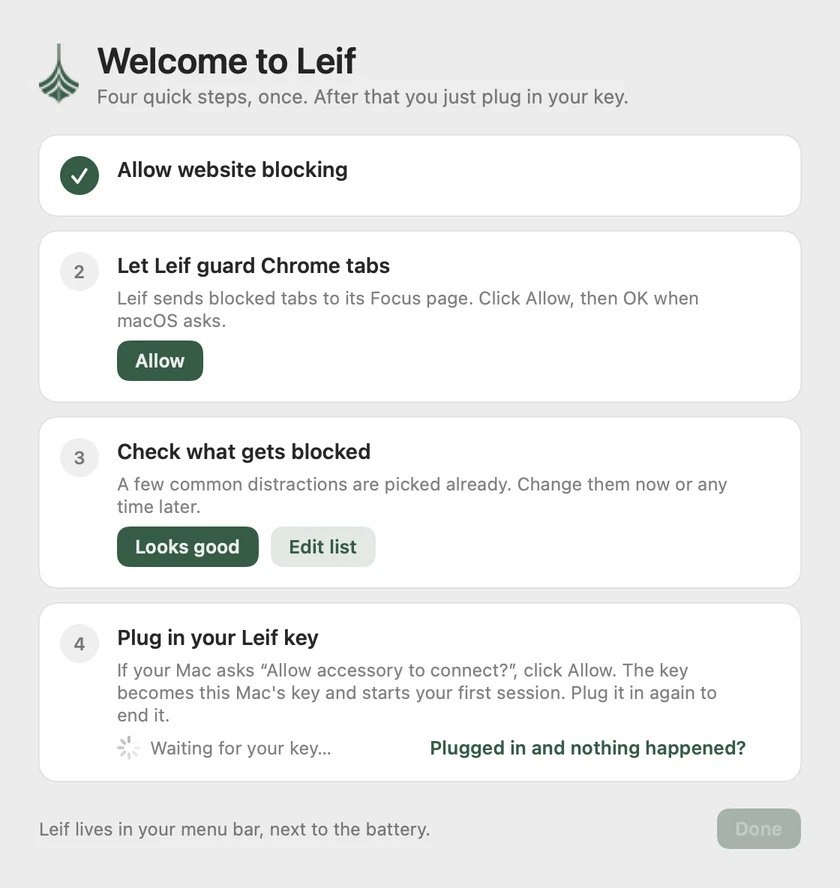
Allow website blocking

This is the one fiddly step. macOS makes you switch on anything that can block websites yourself, which is a good thing.

  1. In Leif's checklist, click Allow, then Open System Settings.
  2. System Settings opens at General → Login Items & Extensions. Scroll down to Extensions.
  3. Click the ⓘ next to Network Extensions.
  4. Turn on Leif. Enter your Mac password or use Touch ID if asked. Click Done.
  5. When macOS asks if Leif can filter network content, click Allow.

On macOS 13 Ventura or 14 Sonoma it's in a different place: open System Settings → Privacy & Security, scroll down, and click Allow next to the message about Leif.

Step 4 of 7

Let Leif guard Chrome tabs

If you use Chrome, Leif swaps any blocked tab that's already open for its Focus page, so nothing stays on screen.

  1. In the checklist, click Allow next to “Let Leif guard Chrome tabs”.
  2. macOS asks if Leif can control Google Chrome. Click Allow (on older macOS the button says OK).

No Chrome? Leif skips this step by itself. Safari and other browsers are blocked by the filter from step 3.

Step 5 of 7

Pick what gets blocked

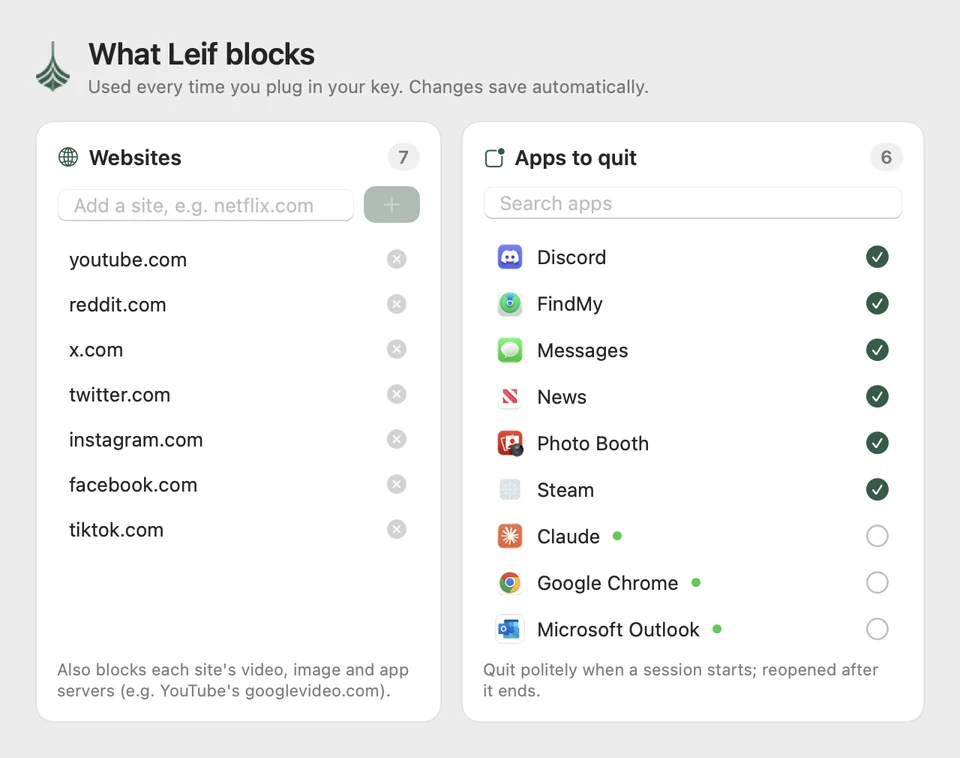
Leif starts with the usual suspects: YouTube, Reddit, X, Instagram, Facebook and TikTok.

  1. Happy with that? Click Looks good.
  2. Or click Edit list. Type a site like netflix.com and press Return to add it, or click × to remove one.
  3. On the right, tick any apps you want closed during a session, like Discord or Messages. They reopen when you're done.

You can change the list any time from Leif's menu, except during a session. That's the point.

Leif's block list window: websites like youtube.com and reddit.com on the left, apps to quit like Discord and Messages on the right.
The block list. Changes save by themselves.

Step 6 of 7

Plug in your key

  1. Unlock your Mac, then plug your Leif key into a USB-C port. Push it in straight and all the way.
  2. If your Mac asks “Allow accessory to connect?”, click Allow.
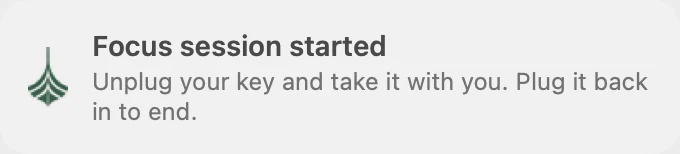
  3. That's it. The key is now this Mac's key, and your first focus session starts. The leaf in your menu bar turns green.

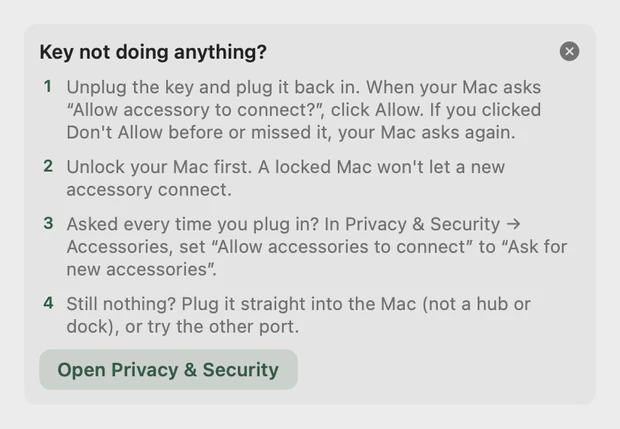
Nothing happened? Unplug it and plug it back in, and look for the Allow prompt. Plug it straight into the Mac rather than a hub or dock. Still stuck? Email [email protected].

Step 7 of 7

You're set. Here's how it works.

  • Plug in to start. The sites and apps on your list are blocked straight away.
  • Unplug it and lock in. The session keeps going without the key. Put it in another room, a drawer, a friend's pocket.
  • Plug in again to stop. Everything comes back and you get a short summary.

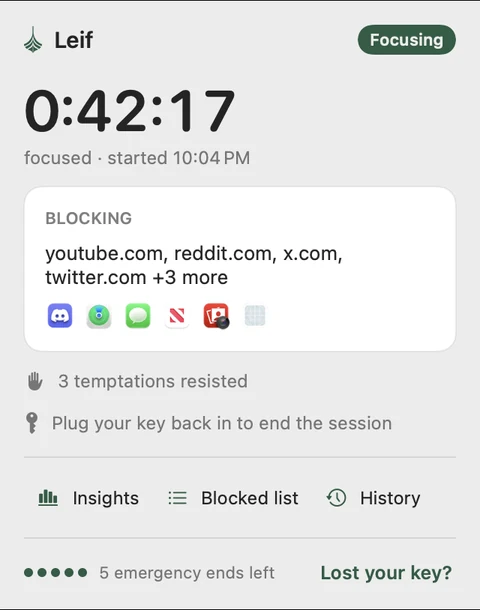
Click the leaf in your menu bar any time to see the timer, how many times you were tempted, and your Insights.

Lost your key mid-session? Leif gives you five emergency ends. Find them under Lost your key? in the menu.

Leif's menu bar panel during a session: a 0:42:17 timer, the blocked sites and apps, and 3 temptations resisted.
Click the leaf in your menu bar during a session.
Leif's 'Key not doing anything?' help: four steps to get the key recognised.
If the key ever does nothing, this help is in Leif's menu too.